Request Pane
The request pane is where you compose and edit requests before sending them to the target service.
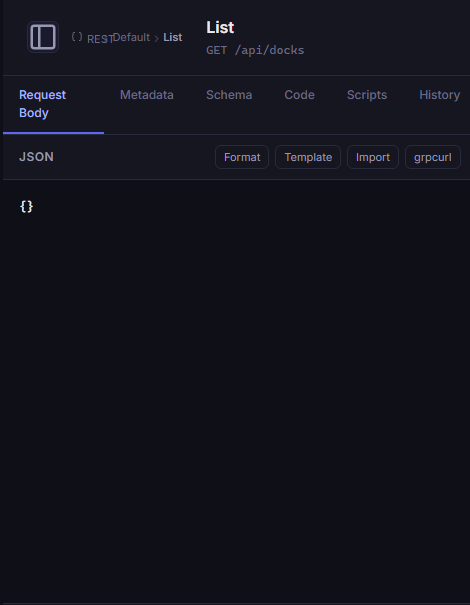
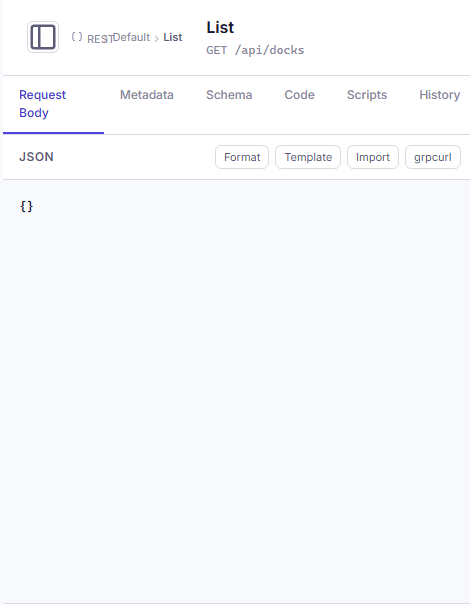
Input Modes
Form Mode
Bowire generates a structured form from the method's input schema. Each field appears as a labeled input with its type indicated. Nested messages render as collapsible groups. This mode prevents JSON syntax errors and is ideal for quick edits.
JSON Mode
A raw JSON editor with syntax highlighting. Bowire auto-generates a template from the schema:
{
  "name": "string",
  "count": 0,
  "active": false
}
Toggle between modes using the mode switch above the editor. Changes are preserved when switching.
Metadata Headers
Click the Headers button to reveal the metadata panel. Add key-value pairs that are sent with the request:
| Key | Value |
|---|---|
authorization |
Bearer <token> |
x-request-id |
550e8400-e29b-41d4-a716-446655440000 |
For gRPC, these are sent as gRPC metadata. For SignalR, they are sent as connection headers.
Import
From JSON
Paste or type a JSON object directly into the JSON editor. Bowire validates the JSON before sending.
From File (CLI)
In CLI mode, use @filename to read the request body from a file:
bowire call --url https://server:443 myService/MyMethod -d @request.json
Client Streaming Composer
For client-streaming methods, the request pane shows a message composer:
- Type a JSON message
- Click Add to queue it
- Queued messages appear in a list with remove buttons
- Click Send All when ready
See also: Form & JSON Input, Export & Import